How to Reset Irobot Roomba: Simple Steps to Troubleshoot

Resetting your iRobot Roomba can solve many issues. It’s a simple process that anyone can do.
Roombas are smart robots designed to keep your floors clean. But sometimes, they can run into problems. Maybe it’s not charging, or it’s acting strange. Resetting it can be the quickest fix. This blog will guide you step-by-step on how to reset your Roomba.
You’ll get it back to working condition in no time. Whether you own an older model or the latest one, the reset steps are easy. Keep reading to learn how you can do it yourself. Your Roomba will be ready to clean again soon!
Introduction To Roomba Resetting
The Roomba, a nifty little robot vacuum, is a savior for those who dread cleaning chores. However, like any tech gadget, it can occasionally act up. Understanding how to reset your Roomba can be your magic wand to restore its optimal functionality. This simple act can save you from unnecessary frustration and bring your Roomba back to life. But why would you need to reset it?
Why Resetting Is Necessary
Resetting your Roomba is more than just a tech trick. It’s a crucial step when your vacuum starts misbehaving. Picture this: your Roomba goes in circles or refuses to start. A reset can often resolve these quirks. It’s like giving your Roomba a fresh start, clearing any temporary glitches. Have you ever experienced your Roomba not returning to its home base? A reset might just be the solution!
Common Issues Requiring Reset
Roomba owners often encounter a few common issues that demand a reset. Your Roomba may suddenly lose Wi-Fi connection, making it impossible to control via the app. Or perhaps it’s stuck in an endless loop, cleaning the same spot repeatedly. Battery-related issues can also be a signal for a reset. Imagine your Roomba draining battery faster than usual. Resetting can often recalibrate its power usage. Remember that these resets are simple and safe, requiring just a few minutes of your time.
It’s fascinating how a quick reset can fix these problems. Have you ever wondered if your Roomba’s age affects its performance? Regular resets might be just the trick to keep it running smoothly, regardless of its age.
Preparing For The Reset
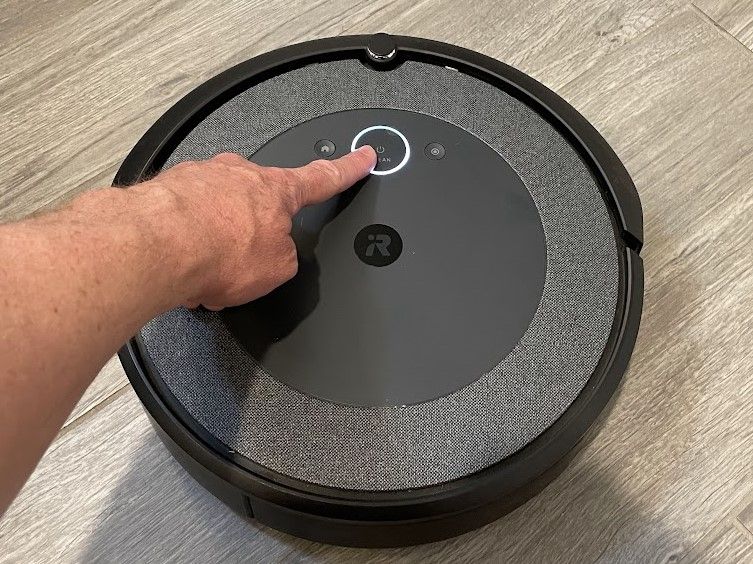
Resetting your iRobot Roomba is simple and quick. Press and hold the “Clean” button until you hear a beep. This resets the device, readying it for a fresh start.
Resetting your iRobot Roomba can breathe new life into your trusty cleaning companion. Whether it’s acting up or you simply want a fresh start, preparing for the reset is crucial. Before diving into the process, you need to gather some essential tools and take a few precautions to ensure everything goes smoothly. This preparation sets the stage for a successful reset, saving you from potential headaches and ensuring your Roomba is up and running in no time.
Tools Needed
To reset your Roomba, you don’t need a toolbox full of gadgets. A few simple items will do the trick:
– Small Phillips screwdriver: Handy for accessing the battery compartment if needed.
– Soft cloth: Useful for cleaning any dust or debris that might interfere with the reset.
– Your smartphone: Ensure it’s charged and the iRobot app is installed, just in case you need it for reconfiguration.
Imagine the frustration of getting halfway through a task only to realize you’re missing something essential. Being prepared with these tools ensures you won’t hit any roadblocks.
Precautions To Take
Before you press the reset button, consider these precautions:
– Backup settings: If you’ve customized your Roomba’s schedule or settings, jot them down. This helps in reconfiguring your device quickly.
– Check battery level: Ensure your Roomba has enough charge. A low battery might interrupt the reset process.
– Clear the area: Keep the reset area free of obstacles. You don’t want to trip over a cable or knock something over mid-process.
Resetting your Roomba without taking these precautions is like diving into a pool without checking the water temperature. It’s always better to be safe than sorry.
Have you ever reset a gadget only to lose all your saved settings? Taking a few minutes to prepare can save you from that frustration.
Soft Reset Steps
Resetting your iRobot Roomba can solve performance issues. Press and hold the clean button for ten seconds. This soft reset clears temporary data without affecting settings. Your Roomba should restart, ready for a fresh cleaning cycle.
Resetting your iRobot Roomba can be a quick fix for minor glitches or unresponsive behavior. The soft reset is a simple process that doesn’t erase your scheduling preferences but can breathe new life into your robotic cleaner. Whether it’s a connectivity issue or a temporary malfunction, knowing how to perform a soft reset is a handy trick to have up your sleeve.
When To Use Soft Reset
Ever noticed your Roomba acting a bit strange? Perhaps it’s not returning to its dock or ignoring its cleaning schedule. These are prime moments to consider a soft reset.
A soft reset is perfect for minor issues like connectivity problems or when your Roomba seems sluggish.
Think of it as giving your Roomba a short nap—it wakes up refreshed without losing its memory.
Step-by-step Guide
Performing a soft reset is easier than you might think.
Here’s how you can do it:
1. Press and Hold the Buttons: Find the “Clean” button on your Roomba. Press and hold it for about 10 seconds.
2. Listen for the Beep: Your Roomba will emit a beep sound. This is your cue that the reset process has started.
3. Release the Button: Let go of the “Clean” button. Your Roomba will reboot automatically.
4. Test Your Roomba: Once it restarts, press the “Clean” button again to see if it’s responding properly.
Have you ever tried this and been amazed at how such a simple trick solves the problem? It’s almost like magic, right?
Give it a go and see how your Roomba gets back on track with just a few button presses.

Credit: www.wikihow.com
Factory Reset Steps
Resetting your iRobot Roomba can solve many performance issues. A factory reset restores the device to its original settings. This process can help if your Roomba encounters persistent problems. Let’s explore the steps for a successful factory reset.
When To Use Factory Reset
Consider a factory reset if your Roomba faces persistent issues. Problems like connectivity, navigation errors, or software glitches may need a reset. A reset is also helpful if you’re giving your Roomba to someone else. It ensures your data and settings are completely removed.
Step-by-step Guide
First, ensure your Roomba is on and fully charged. Press and hold the “Clean” button for about 10 seconds. Wait until you hear a beep sound. Release the button after the beep. Your Roomba will then reboot itself. The reboot process may take a few minutes. Once done, all settings will return to default. Your Roomba is now ready for a fresh start.
Resetting Different Roomba Models
Resetting different Roomba models requires simple steps to ensure smooth operation. For most models, press and hold the “Clean” button for 20 seconds until the indicator lights turn off. This process helps restore factory settings and resolve minor issues.
Resetting your iRobot Roomba is a practical solution for various glitches or issues. Whether you’re dealing with connectivity problems or your Roomba is acting up, a reset might be the answer. Different Roomba models have distinct reset procedures. Let’s dive into how to reset older and newer models effectively.
Older Models
Older Roomba models, like the 500 and 600 series, require a simple reset process. First, press and hold the “Clean” button for about 10 seconds. You’ll know the reset is successful when you hear a beep.
If your Roomba is still not working as expected, try removing the battery for a few minutes and then reinstalling it. This can often solve persistent issues.
Have you ever felt frustrated with technology that seems to have a mind of its own? Resetting might just bring your Roomba back to life, saving you from unnecessary stress.
Newer Models
Newer Roomba models, such as the 800 and 900 series, have a different reset method. Press and hold the “Home,” “Spot Clean,” and “Clean” buttons simultaneously for 10 seconds. You’ll hear a beep, confirming the reset.
For Wi-Fi-connected models, you may need to reconnect your Roomba to your network after a reset. This ensures seamless integration with your smartphone app.
Are you aware that a simple reset can sometimes solve complex tech issues? It’s often the easiest and most effective first step in troubleshooting.
Resetting your Roomba is a straightforward process, but why not share your experiences? Have you tried resetting your Roomba before? Did it resolve your issue? Your insights might be the key to helping someone else.

Credit: www.youtube.com
Post-reset Procedures
Resetting your iRobot Roomba can fix common issues like connectivity problems. Press and hold the “Clean” button for 20 seconds. Release the button when you hear the reboot tone, signaling a successful reset. This process helps maintain efficient cleaning performance.
Resetting your Irobot Roomba can help solve many issues. Once you’ve reset your device, it’s time to perform some post-reset procedures. These steps ensure your Roomba runs smoothly and efficiently. Follow these simple procedures to get your Roomba back to peak performance.
Reconnecting To Wi-fi
After a reset, your Roomba needs to reconnect to Wi-Fi. Start by opening the iRobot Home app on your smartphone. Ensure your Wi-Fi is active and working. Inside the app, choose your Roomba model. Follow the on-screen instructions to reconnect to Wi-Fi. Make sure your device is near the router for a stronger signal.
Reconfiguring Settings
Once reconnected, it’s time to reconfigure your settings. Open the app again. Go to the settings menu. Customize your cleaning schedule to suit your needs. Adjust cleaning preferences like cleaning passes and carpet boost. Set up any virtual walls or keep-out zones. Save these settings to ensure your Roomba follows your preferred cleaning routine.
Troubleshooting Reset Issues
Resetting your iRobot Roomba can solve many performance issues. Sometimes, though, you might face challenges while trying to reset. Understanding these challenges is crucial for a successful reset.
Common Problems
Many users report their Roomba not responding to reset commands. This can occur if the battery is low. Another issue is the device not completing the reset process. Sometimes, the Roomba continues to malfunction post-reset. These problems can be frustrating and hinder cleaning schedules.
Solutions And Tips
Charge your Roomba fully before attempting a reset. Ensure the battery is properly connected. If the Roomba does not reset, check for software updates. Updating the software can solve many issues. Clean the device sensors and brush regularly. Dirt and debris can impact performance. Follow the manufacturer’s reset instructions carefully.
If problems persist, contact customer support for assistance. They can provide specific guidance. Always keep your Roomba’s environment clean and obstacle-free. This helps maintain optimal performance.
Credit: www.makeuseof.com
Maintaining Your Roomba
Maintaining your Roomba is essential for ensuring it performs optimally. A well-maintained Roomba not only cleans effectively but also lasts longer, saving you money and hassle. Let’s dive into some practical tips to keep your Roomba in top shape.
Regular Maintenance Tips
Think of maintenance as a routine check-up for your Roomba. Start by emptying the dustbin after each cleaning session. A full dustbin can reduce suction power and efficiency.
Check the brushes and remove any hair or debris tangled around them. This simple step can dramatically improve cleaning performance.
Don’t forget the filters. Clean or replace them every couple of months to maintain optimal air quality and suction strength. A clean filter means a cleaner home.
Battery care is crucial. Charge your Roomba fully and avoid letting the battery drain completely. This helps prolong battery life and ensures your Roomba is ready to go when you need it.
Consider scheduling regular deep cleans. This involves carefully inspecting and cleaning all components. It keeps your Roomba in tip-top shape and can prevent unexpected breakdowns.
When To Seek Professional Help
Sometimes, despite your best efforts, your Roomba might act up. If it stops functioning or shows error messages you can’t resolve, it might be time to seek help.
Professional technicians have the tools and knowledge to diagnose issues quickly. They can save you time and potential frustration from trying to fix persistent problems yourself.
Think about the long-term benefits of professional maintenance. Would you rather spend a little now to ensure your Roomba operates flawlessly, or risk costly repairs down the road?
Are there times when you’ve struggled with tech issues, only to realize professional help was the better option? Your Roomba deserves the same consideration.
Remember, regular maintenance combined with timely professional help can extend your Roomba’s lifespan. Are you giving your Roomba the care it needs to serve you well?
Conclusion
Resetting your iRobot Roomba is simple and quick. Follow the steps carefully. Your Roomba should work like new again. Regular maintenance ensures better performance. Clean your Roomba’s sensors and brushes often. Keep your device updated with the latest software. A well-maintained Roomba saves you time and effort.
Troubleshooting becomes easier with these tips. Enjoy a cleaner home with less hassle.